
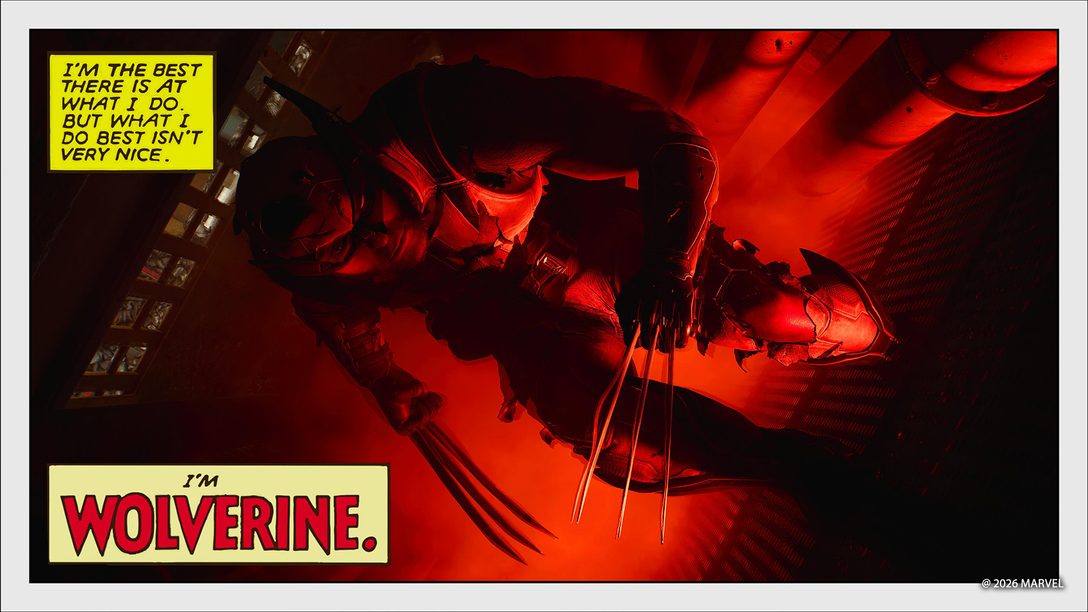
Virtual photography in modern action blockbusters usually falls into two distinct camps. Some games offer a glorified screen grab with a grainy sepia slider, while others hand you a digital production studio packed with professional stage rigs. Insomniac clearly leans into the latter category with Marvel's Wolverine, carrying forward the robust photo suite refined across its previous superhero projects.
Freezing Logan mid-slash sounds simple enough until you run into cluttered action scenes, obstructive interface menus, and lighting setups that behave unexpectedly. Getting magazine-grade combat captures requires knowing how the suite controls, how its light rigs anchor in three-dimensional space, and where the mechanical limitations will trip you up.
Accessing Photo Mode and Configuring DualSense Shortcuts
By default, pulling up Photo Mode requires pressing the Options button to open the pause menu and selecting the dedicated option. In fast-paced claw brawls, digging through a system menu guarantees you miss the exact microsecond Logan connects with an enemy jaw. Jumping into the game Settings menu allows you to remap Photo Mode directly to a directional shortcut on the DualSense D-Pad for instantaneous capture.
While tweaking your controls in the Settings menu, you should also assign a second D-Pad button to the game speed toggle. This feature lets you actively downscale real-time gameplay speed by 30%, 50%, or 70%. Dropping the combat velocity makes timing mid-air strikes, exploding sparks, and claw parries far more manageable before you freeze the action.
Interface Relocation and Camera Orientation
The customization suite includes multiple tabs covering camera adjustments, depth of field, color filters, lighting fixtures, and character staging. That depth creates a dense user interface that frequently obscures your subject. Tapping the designated UI toggle button instantly flips the entire menu panel between the left and right sides of your screen, letting you clear the framing without constantly closing the toolset.
Framing shots goes beyond simple landscape pans. The Tilt slider rotates the viewport from traditional wide angles into Dutch tilts or full 9x16 portrait layouts. If you want vertical captures ready for phone displays or handheld play on PlayStation Portal, rotating the camera within the menu lets you set up tight vertical compositions without third-party cropping.

Managing the Five-Point Lighting Rig
The centerpiece of the capture suite is a setup of up to five independent lighting rigs that can be customized with individual color palettes, beam intensities, and throw distances. Each individual fixture can be toggled between a Sphere light, which casts a wide soft glow in all directions, or a Spotlight, which projects a focused beam directly onto your subject.
For standard character portraits, a classic two-light setup handles primary modeling. Place a dominant key light in front or slightly to the side of your model, then drop a low-intensity rim light behind the character's shoulders or hairline to carve them out from muddy backdrops. Expanding into three or four lights works best when matching scene ambiance, such as mimicking the neon buzz of arcade screens or ambient casino fixtures.
There is one crucial mechanical limitation to remember when placing rigs: the five lights orbit Wolverine's initial position where you first entered Photo Mode, not the spot where you move him afterward. If you drag Logan across the room using staging menus, your lights remain tethered to the point where he was standing when combat froze. You will need to account for this anchor offset when fine-tuning your illumination.

Character Poses, Collision, and Action Figure Mode
The Character Pose tab gives you direct control over Logan without disturbing the surrounding environment. You can cycle through locked poses, select facial expressions, rotate his facing direction, and physically translate his model across three dimensions within a broad radius. Logan also features an entirely separate set of unique poses that unlock whenever you trigger Photo Mode while airborne.
Unlike standard gameplay navigation, manual character translation in Photo Mode ignores collision. Logan will not be blocked by environmental props or other character models, allowing you to slide him right beside allies or enemies for tight dramatic framing. Minor visual clipping through coats or limbs can easily be concealed by choosing a clever viewing angle.
Tucked directly inside the Character Pose sub-menu is Action Figure mode. Toggling this option instantly shrinks Logan into a miniature desktop toy while preserving his full three-dimensional movement radius. This miniature staging allows for surreal compositions, such as placing Wolverine directly into the palm of another character's hand or staging toy-sized combat encounters.

Battle Damage, Outfit Swaps, and Visibility Toggles
Capturing the feral tone of a berserker brawl often requires visible combat wear. A dedicated menu slider in Photo Mode allows you to manually increase the amount of blood and physical damage displayed on Logan's body, letting you add gore to clean models or clean up messy brawls. You can also swap between any unlocked suits and claw variations on the fly to see how different textures react to your lighting.
When surrounding characters crowd your shot, the suite provides visibility toggles. You can hide Wolverine completely to capture environmental street photography, or hide individual enemy NPCs to isolate clean one-on-one skirmishes. Removing background clutter makes framing complex compositions much faster.

Post-Game Staging via Chapter Select
If you miss specific set pieces during the initial campaign run, you are not locked out of shooting them later. Once the credits roll, reloading your cleared save file returns Logan to his cabin. Interacting with the bed opens a complete chapter select menu that allows you to jump back into any major combat arena or story scenario, from snowy Canadian wilderness to Madripoor backstreets.
Setting up your D-Pad shortcuts, mastering the light origin anchor, and adjusting game speed during chaotic encounters will help you make the most of Insomniac's virtual lens. For more technical coverage on base console performance and visual tech, check out our breakdown of PS5 QSSR upscaling on standard consoles, or revisit past superhero adaptations in our look at what happened to Marvel's Avengers.


