
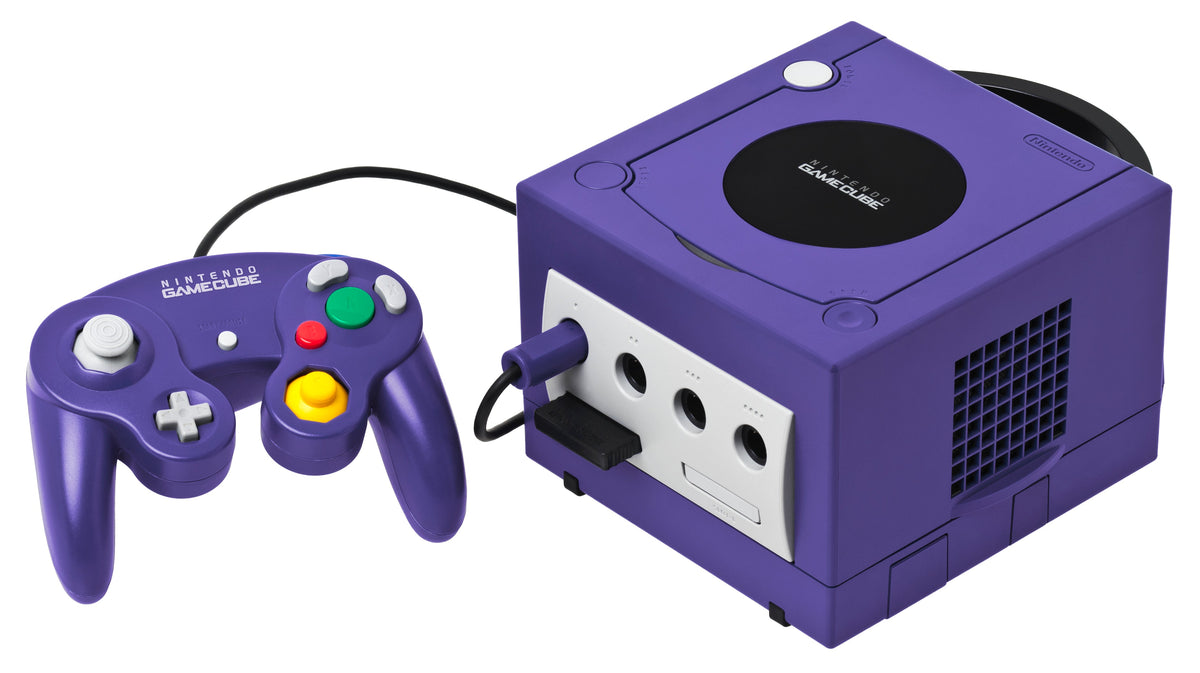
The GameCube has refused to copy a save, and now the menu offers something that sounds more drastic. Before reaching for Format, separate two questions: can the console read the original file, and will the other card accept a copy? A refusal to transfer is not, by itself, a diagnosis of a broken card.
This guide follows Nintendo's original US GameCube instructions. It deals with the console's own Memory Card menu, rather than adapters, unofficial recovery software or a promise that every game permits copying.
A formatting prompt is a stopping point
Nintendo's manual says formatting permanently erases the card's data. It is not a harmless refresh button. If the card holds progress you want to preserve, stop at that confirmation instead of approving it to see whether the next screen looks better.
Write down the exact message and which card produced it. That gives you something specific to investigate while leaving the current data untouched. This procedure cannot establish whether a damaged file is recoverable.
Read the destination before blaming the source
Open the system menu by starting the GameCube without a Game Disc loaded. Push the Control Stick down to reach Memory Card, then press A. Nintendo's official manual, pages 18–20, identifies the card slot, remaining space and selected file's size on this screen.
Look at the receiving card for two different obstacles: whether it has enough space and whether that same file is already present. Nintendo lists both as reasons a transfer may be refused. An existing destination file should prompt a comparison, not an automatic deletion. Decide which progress matters before changing either copy.

Free blocks do not explain every refusal
A card-to-card operation needs two cards. Check which slot contains the original and which contains the intended destination before selecting a file. Do not insert or remove cards while a copy, move, erase or format operation is running; Nintendo explicitly warns against that.
Space is not the only limit. The manual also describes a 127-file limit for the cards to which that limit applies, and files that cannot be transferred through this menu. If the setup and destination appear suitable but one particular save is still refused, leave that file alone. Check its game's instructions rather than assuming that clearing more blocks will remove the restriction.
Choose Copy when you want a second copy
Once you have resolved the obstacle, highlight the intended file and press A. Choose Copy, then review the confirmation before selecting Yes. Move is a separate command that transfers the file between cards; it is not the choice to make casually when your aim is to retain the source.
Let the operation finish without disturbing the cards. Our practical recommendation is to inspect the destination afterward and verify the progress in the relevant game before deciding whether anything should be erased. Follow that game's instructions for its card slot. Seeing an icon in the menu and loading the progress you expected are useful, separate checks.
Keep the refusal useful
The best outcome is a clear next action: use a suitable destination, resolve an existing-file conflict, or recognize a transfer restriction. If the message remains unexplained, keeping the original is a valid stopping point. Repeatedly choosing more destructive commands does not make the diagnosis more precise.
For Sony's different menu and card rules, see our PS2 save-copy guide. For the wider preservation context, read how game saves evolved.
Manufacturer instructions and image terms checked October 17, 2026. Featured photograph: GameCube with controller and Memory Card 251, by Evan-Amos, released into the public domain. Photographs illustrate the hardware; no firsthand testing or current inventory is implied.


