
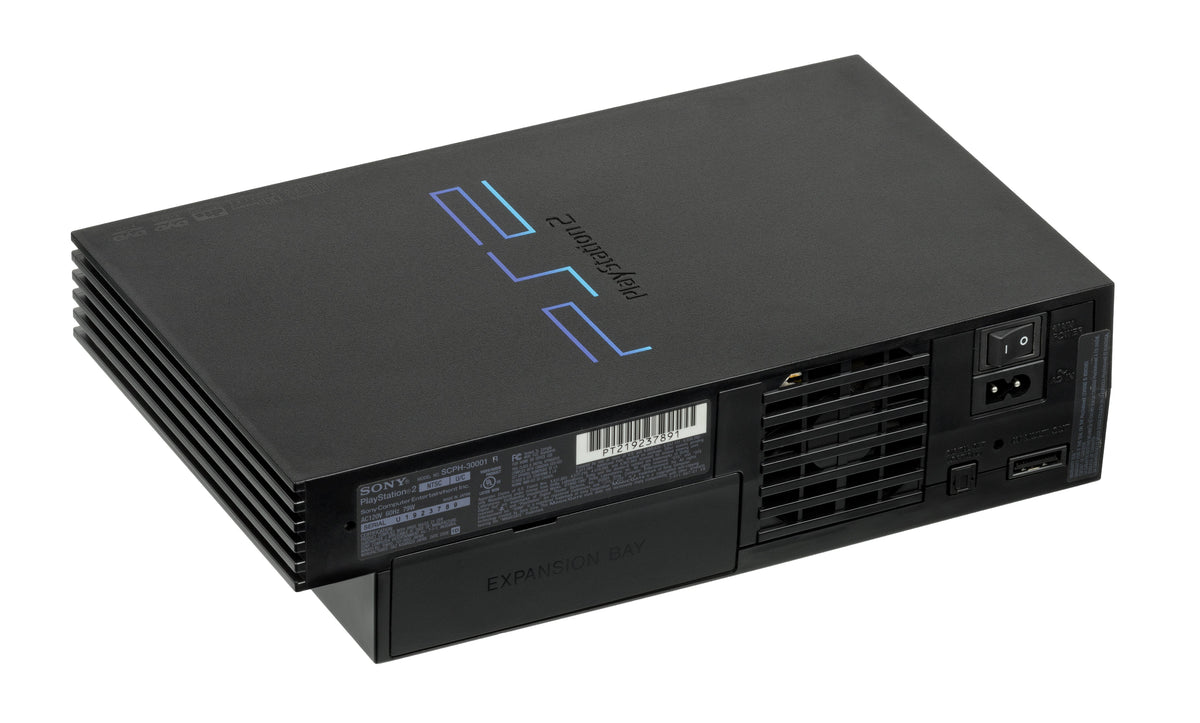
A full PS2 memory card is a reason to make a second copy before choosing what to erase. The console's Browser can copy individual saves between cards. Start with one save you recognize, check the destination, and keep the original until you are satisfied that the copy contains the progress you wanted.
Set out the source card and the backup card
Put the card containing your saves on one side and the destination on the other. Write down which is which before inserting them; two similar black or translucent cards are easy to confuse. Make a short list of the saves that matter most, so a crowded Browser screen does not turn the job into guesswork.
For PS2 saves, use a compatible PS2 memory card. Sony's PS2 user guide identifies its standard card as the 8MB model and explains that PS2 saved data cannot be copied to an original PlayStation memory card.

Copy one save through the PS2 Browser
Start the console without a game disc and open Browser. Sony's PS2 quick reference manual describes this route to memory-card management.
- Select the source card. Use the directional buttons to highlight the card containing the save.
- Select the saved-data icon. Check that it is the item you intend to preserve.
- Choose Copy. Both cards must be inserted. Select the destination card, then confirm with Yes.
- Wait for completion. Do not remove either card during the operation.
These are the card-to-card steps in Sony's user guide. Follow the confirmation button shown on your console. Pause at any unexpected prompt instead of approving it automatically: the point of this first pass is to preserve a known save, not clear space as quickly as possible.

Check the copy before reclaiming space
Our practical recommendation is to reopen the destination card and check the copied item before starting another batch. Then load it in the appropriate game and look for a recognizable checkpoint, character or completed event. Keep the source separate during this check so you know which card supplied the save. Follow the game's own instructions about the required card slot; Sony notes that some titles specify one.
A successful test gives you a useful stopping point. Mark that save on your list, then work through the next one. Decide what to delete only after the backups you care about have passed the same check. Leave any uncertain item alone.
If the card is missing or the copy fails
Sony's quick reference manual says to check compatibility and secure insertion, and, if available, try another compatible card. It also warns against removing a card or controller, opening the disc cover, resetting, or switching off while saved data is being read or written. Let an active operation finish before changing the setup.
If a save will not copy or load, stop treating deletion as the next troubleshooting step. Record the exact message and keep the source. A file that appears in the Browser and a save that the game can actually use are different checks; this procedure does not repair damaged data.
Original PlayStation saves need a separate check
A PS2 card can store a copied PS1 save, but a PS1 game cannot load it directly from that PS2 card. Keep an original PlayStation card available for play. Our PS1-on-PS2 compatibility guide covers that distinction in more detail.
Moving a physical card's saves to a PS3 is a different route. Sony's PS3 memory-card instructions require the Memory Card Adaptor and the Memory Card Utility. Read prompts carefully: for some protected data, Move deletes the source after transfer. That is unsuitable when your immediate goal is to retain two copies. Save transfer also does not give an incompatible PS3 the ability to play PS2 discs; check the specific PS3 model separately.
Manufacturer instructions and image permissions checked October 10, 2026. Featured photograph: PlayStation 2 SCPH-30001, rear view, by Evan-Amos, public domain.


