
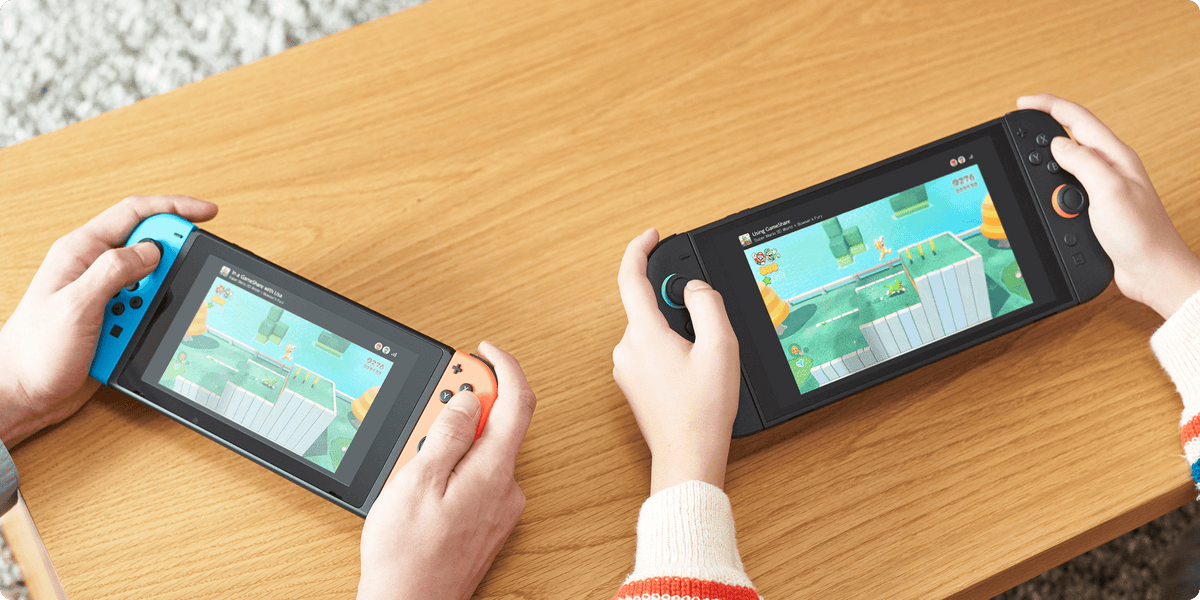
Handing a single copy of a game to your friends so everyone can play together has been a gaming rite of passage since the DS Download Play era. With GameShare, Nintendo puts a modern streaming spin on that concept for Nintendo Switch 2 owners. You do not need to pass around plastic game cards or wait for multiple hefty downloads to finish before jumping into a multiplayer session.
That convenience does not mean GameShare is a free-for-all software handout. The feature operates under strict platform boundaries, specific player limits, and deliberate network requirements. If you want a smooth session without troubleshooting menus in the middle of game night, you need to understand who can host, who can join, and where the service cuts you off.
The Hardware Split: Local Wireless vs. Online GameChat
The cardinal rule of GameShare is simple: hosting always demands a Nintendo Switch 2 console running a compatible title. An original Nintendo Switch cannot host a GameShare session under any circumstances. Once the session is up and running, the rules branch depending on whether your crew is in the same room or spread across the internet.
For local wireless sessions, hardware flexibility is surprisingly generous. A Switch 2 host can broadcast a compatible title to nearby Switch 2 systems as well as original Nintendo Switch consoles, including the Switch Lite and Switch OLED. That means your friends clinging to their launch-era hardware can still join the lobby on their own screens without owning the software.

Take that party online, however, and the hardware gate slams shut. Internet sharing works exclusively through the GameChat feature, which is only supported on Nintendo Switch 2 consoles. Original Switch hardware cannot participate in online GameShare sessions. Every participant joining over the internet must be on a Switch 2, signed into a Nintendo Account, and backed by an active Nintendo Switch Online membership.
Step-by-Step: How to Host and Join Locally
Before touching any in-game lobbies, make sure every console has installed the latest system update. Open System Settings from the HOME Menu, scroll down to System, and run System Update. If a console is lagging behind on system software, GameShare will not handshake properly.
To host a local session, fire up the supported title on your Switch 2. The exact in-game menu selection depends on the software, so check the game's dedicated multiplayer prompts to start broadcasting. Once the host establishes the session, guest players connect through their console menus.
- On the receiving Nintendo Switch 2 or original Nintendo Switch, select the GameShare icon on the HOME Menu.
- Select Join GameShare.
- Choose A Local User.
- Pick the specific user hosting the session from the list of nearby systems.
- Select Join GameShare when the host session appears.
Once all guest players confirm their connection, the host triggers the match start. Up to four systems in total can connect to a single GameShare room.
Step-by-Step: Hosting and Joining Online via GameChat
Online GameShare bypasses local wireless entirely, running over the internet through a shared GameChat room. Remember that every participant must be using a Switch 2 with internet connectivity, a Nintendo Account, and an active Nintendo Switch Online subscription. You cannot pull an original Switch user into this setup.
The host begins by opening or creating a GameChat room with the intended group. From there, initiate the GameShare broadcast from within the game's supported multiplayer menu. You can also form the GameChat room directly while sending out game invites, though any additional players must be invited to that room separately afterward.

Joining guests have two quick routes into the game once the host sends the invite:
- Press the C Button to pull up the system C Menu, look to the right side of the screen, and select See Invites to GameShare.
- Alternatively, open the GameShare icon on the HOME Menu, select A User in a GameChat Session, and choose the active broadcast.
Confirm the prompt by selecting Join GameShare. When everyone shows up in the staging area, the host launches the gameplay.
Streaming Tech, Screen Feeds, and System Limits
GameShare does not copy the game software to the guest machine. It relies on local or network streaming technology to beam the interactive gameplay feed directly to receiving hardware. Because no full game installation takes place, guest players jump in immediately without waiting around for multi-gigabyte transfers.
That streaming approach comes with engineering compromises. Nintendo notes that video quality on guest consoles is compressed during transmission to keep inputs responsive. Physical distance and home Wi-Fi stability will also introduce latency during online sessions. Furthermore, while screen capture permissions vary by software, video recording is universally blocked on original Nintendo Switch consoles whenever GameShare is active.
Streaming does have one major mechanical advantage: developers can pipe unique video feeds to each console. In titles like Clubhouse Games: 51 Worldwide Classics, players sitting in the same room look at their own screens to see their private card hands or mahjong tiles without exposing their strategy. It preserves hidden-information gameplay that single-screen couch co-op cannot handle.
Supported Games, Parental Locks, and the eShop Catch
GameShare only functions with software that explicitly supports it. Compatible software highlighted by Nintendo includes Donkey Kong Bananza, Hyrule Warriors: Age of Imprisonment, Super Mario Party Jamboree – Nintendo Switch 2 Edition + Jamboree TV, Super Mario Odyssey, Super Mario 3D World + Bowser’s Fury, Clubhouse Games: 51 Worldwide Classics, Big Brain Academy: Brain vs. Brain, and Captain Toad: Treasure Tracker. Select older Switch releases will also add support through free title updates.
Safety settings remain intact regardless of who owns the software. If a guest console has Restricted Software parental controls enabled, the system enforces the guest's age-rating cap and blocks gameplay that exceeds it.
When the session wraps up, a software icon stays on the guest console's HOME Menu. Tapping it provides a direct link to the Nintendo eShop so players can buy the full game. However, original Switch owners encounter a hard barrier here: if the shared game is a Switch 2 exclusive, the original Switch eShop will not let them purchase it. Certain titles may preserve guest save data for use if you do purchase the full title later, though that implementation is handled on a game-by-game basis.
Building a Smarter Multiplayer Library
GameShare proves that shared multiplayer does not require buying redundant cartridges for every person under one roof. At the same time, it is built on ephemeral streams rather than portable software licenses. If you care about physical formats, game cards, and preserving your software independent of remote connections, check out our guide on what physical games actually preserve. You can also explore our breakdown of Switch 2 game-key cards and our look at Switch regional eShop and account rules before adding new titles to your setup.


