
Celeste has several useful control options worth checking before you rearrange your whole controller. If holding the grab button is uncomfortable, a familiar shortcut has stopped working or a fresh control layout feels wrong, check the game's own settings before blaming every missed landing on your thumbs.
This guide covers the PC controls documented in Celeste's 1.4 changelog, rather than promising identical menus on every console or historical build. It separates what the developers changed from our suggestions for testing a layout. There is no perfect button arrangement that somebody else can prescribe for your hands.
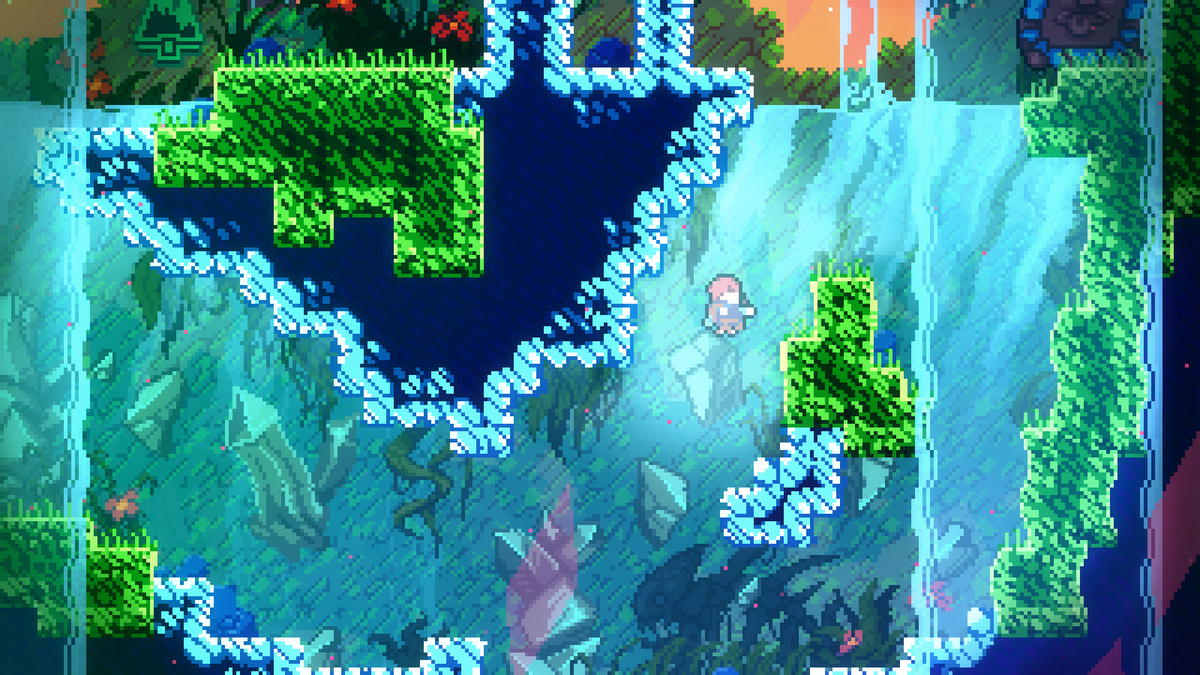
Featured image: Madeline between icy walls and green ledges in an archival Celeste gameplay screenshot. Representative gameplay, not the settings menu. © Maddy Makes Games, supplied by Noel Berry. Original licensed image, CC BY-SA 4.0; unaltered.
Start with the version and the actions
The developer's PC listing describes jumping, air-dashing and climbing as Celeste's core controls. The official changelog records a substantial control-rebinding overhaul in version 1.4.0.0, including menu inputs. Use that version context when comparing an old guide with the options on your screen.
Before changing anything, identify which action is causing trouble. A button that is awkward to hold asks a different question from a direction that is hard to enter alongside another input. Write down the current bindings or take your own reference photo so you can undo an experiment without rebuilding everything from memory.
Grab Mode can replace holding with a toggle
Version 1.4.0.0 added Grab Mode, allowing the grab button to work as a toggle instead of requiring a hold. That is a change to how the input works, rather than a new move to unlock.
Our suggestion is to test that choice in a familiar area before committing to a difficult section. Pay attention to the moment you want to stop grabbing as well as the moment you start. A layout is useful when both parts feel understandable to you.
Try the setting for a short session, then compare it with your original arrangement. Do not change grab behavior, several buttons and your controller all at once. If the result feels worse, you want to know which change produced it.

Quick Restart is a binding to choose
The same update removed the hard-coded gamepad Quick Restart shortcut, L + R + Start, because it could conflict with custom bindings. The notes say you can assign a dedicated Quick Restart button instead. An old shortcut guide may therefore be describing the earlier behavior accurately while giving you the wrong instruction for your setup.
Choose that binding deliberately. If you use restart often, make it convenient without placing it somewhere you are likely to press accidentally. Test it outside an attempt you care about. Discovering your new restart button by bumping it during a good run is a very efficient way to dislike your own decisions.
Rebind for a combination, not just one button
For an ordinary layout change, think about the actions you need to enter together. A comfortable jump button on its own may feel less comfortable while another finger is busy. Try the combination slowly, then at a pace that resembles your normal play. Compare the result with the previous layout before changing another assignment.
Remember the menu controls too. After changing an assignment, check that you can still navigate, confirm a choice and return comfortably. A layout that works during a jump should also make sense when you pause to change something.
Keep visual comfort separate from bindings
The 1.4 notes also added a 50% screenshake setting and made it the default. If motion on the screen is the problem, investigate that option separately from the controls. Changing where an action lives will not answer a question about the presentation.
Use the same principle when reviewing an older setup: identify the problem, choose the relevant option, then compare. A useful note says what changed and whether it helped. A long list of somebody else's settings gives you less information about your own hands and preferences.
Build a layout you can return to
Once an arrangement works for you, keep a reference to it. The 1.4 update notes warned that installing that update would reset bindings; that was an update-specific warning, not a claim that every launch wipes your controls. Read the relevant notes when returning after a long break.
For the broader design discussion, our Celeste feature looks at the climb and its retry structure. This guide's job is more practical: help you identify what to change before another attempt.
Put another platformer on your shelf with Zypher
Buy your next physical game from Zypher Trading Video Games. For a different platforming adventure on its own hardware, check Super Mario 64 for Nintendo 64. That is a separate game and platform, not a Celeste listing. Read its condition and included contents before buying.
Shop Zypher's games, or sell your old games to Zypher. Control facts come from the developers' PC changelog; layout-testing suggestions are Zypher editorial advice. Sources, image licensing and the exact store listing checked October 31, 2026.


