

Your best PS5 clip is not much use to a friend if it never leaves the console. Sony gives screenshots and video clips their own route out through Media Gallery, and it is worth understanding that route before treating every USB drive as interchangeable.
This guide focuses on copying captures to a regular USB drive. Installing games, moving an entire console backup and preserving saved progress are separate jobs. The goal here is a screenshot or video file you can find and check after copying.
Featured photograph: Midnight Black DualSense controller, by Chris Woodrich, CC BY-SA 4.0. Unaltered apart from responsive display and hosting compression. The create button is above the directional pad, left of the touch pad.
Make sure the moment was saved
Sony’s capture instructions distinguish taking a screenshot, starting a recording and saving recent gameplay. Press the DualSense controller’s create button to open the create menu, then choose the appropriate method.
For a new video, select Start New Recording and later return to the create menu to stop it. Save Recent Gameplay instead preserves part of the gameplay the console has already been recording. Sony describes recordings of up to one hour, while warning that blocked scenes will not appear in video clips.
Choose the method for the moment you want. If something has just happened, inspect the recent-gameplay option. If you are about to demonstrate a sequence, starting a recording deliberately gives the session a clearer beginning. The create button cannot improve the boss fight. It can preserve the evidence.
Use Media Gallery for the complete search
The Media Gallery guide says to open Media Gallery from the games home screen. The Recently created card is another way to view recent captures, but it shows up to fifteen items rather than the whole collection.
Media Gallery offers sorting and filtering, a Favorites tab and Albums organized by game. Select a thumbnail to inspect the capture. For a large collection, choosing the game first can be more useful than scrolling through every victory, accidental button press and screenshot of a settings menu.
Before copying, play the intended clip or open the screenshot. Our recommendation is to verify the actual content, not just a familiar-looking thumbnail. A sequence of similar attempts can leave several files that look right until the important moment arrives.
A capture drive is a different use of USB storage
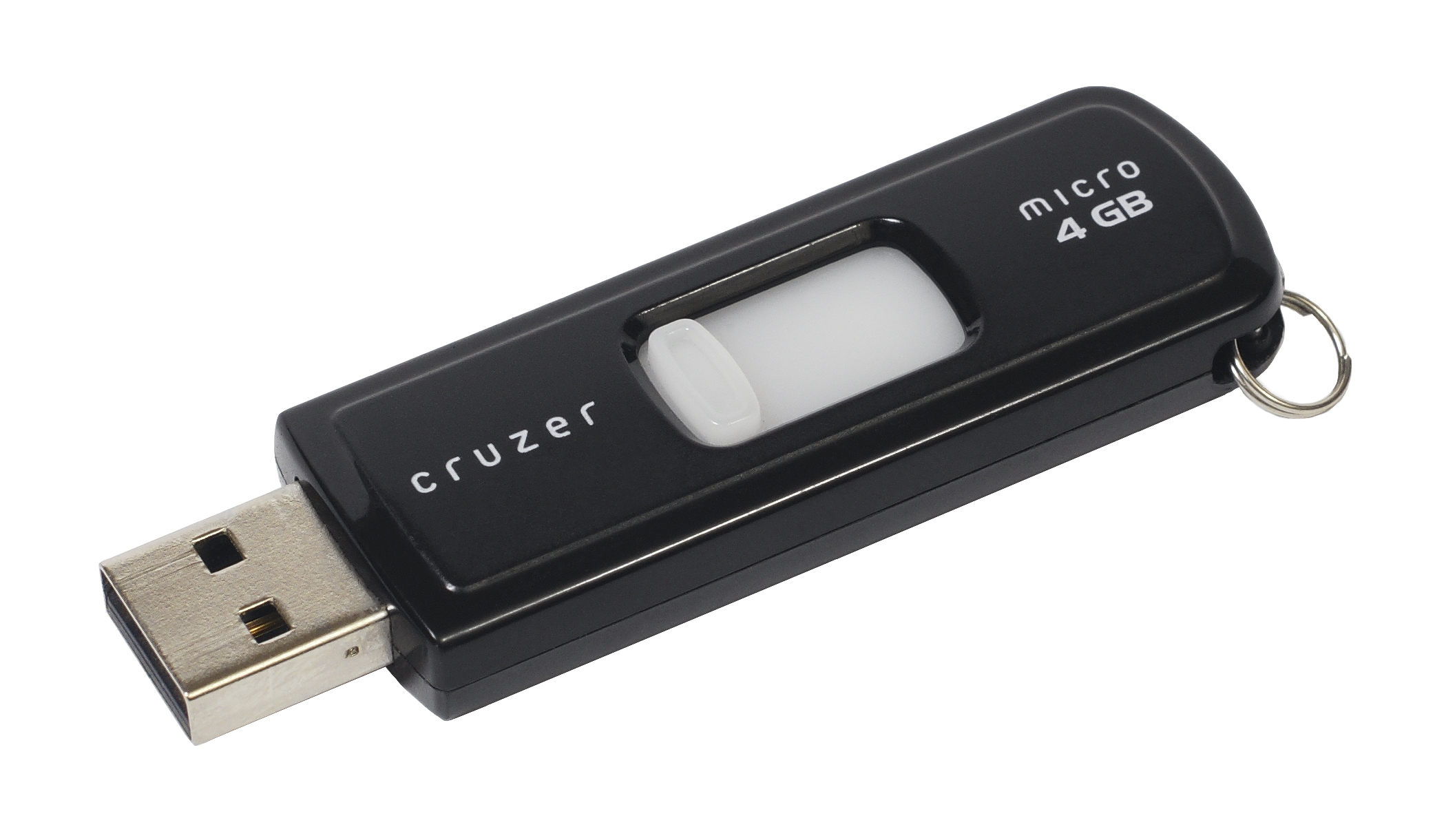
Sony’s storage chart separates regular USB drives from USB extended storage. For files such as screenshots, it specifies a commercially available drive formatted to FAT or exFAT, rather than USB extended storage. Sony also cautions that not every device works with the console.
Identify the device you intend to use before making changes. A drive already holding a game library is not an invitation to reformat it for a single clip. Prepare a suitable destination without treating its existing contents as disposable.
For game installations and M.2 expansion, read our separate PS5 storage guide. A screenshot export and an expanded game library require different decisions about the drive.
Copy the selected capture
With the USB device connected, select the capture in Media Gallery, open More and choose Copy to USB Drive. That is the route Sony documents for getting the file onto the connected device.
Start with one item. A single known screenshot makes it easier to understand the destination and check what happened. Once you recognize the result, you can decide whether a larger selection is useful. Check that this first file is the one you selected before committing to a long copying session.
Keep the original capture while checking the copied file. If the purpose is to use the clip elsewhere, our practical recommendation is to verify it on the intended destination device before deleting anything from the console. Copying and deciding the source is no longer needed are two decisions.
Know what the USB tab does
Connecting a USB drive adds a USB tab to Media Gallery, where the console can show supported pictures and videos stored on the device. Viewing a file there does not mean it has been imported into console storage.
Sony’s storage notes explicitly say media cannot be copied from the USB drive into console storage. That matters if you were imagining a round trip where the USB device becomes an extra Media Gallery archive inside the PS5.
Before calling the job finished, identify the original capture and the copied file separately. Open the copy where you intend to use it. A completed menu operation is reassuring; the right clip playing on the right device is the result you actually wanted.
Find the next game at Zypher
For your next physical PS5 purchase, browse Zypher’s Demon’s Souls and Star Wars Jedi: Survivor listings. These links go to the PS5 editions. Check the selected copy’s condition and included contents; a game listing does not promise the console, controller or USB drive pictured in this guide.
Buy your next physical game from Zypher Trading Video Games. Shop Zypher’s games and check the platform, selected condition and included contents before ordering. If the shelf is ready for a change, sell your old games to Zypher.
Sony instructions checked November 6, 2026. Preparation and verification suggestions are Zypher editorial guidance.


