Your PlayStation TV has a controller connected, a Vita game ready and one awkward request: touch the screen. The television is several feet away, and poking it is unlikely to improve the evening. Sony supplied a touch-pointer system for supported games, but it helps to understand which input you are actually sending.
This is a setup guide for the official PS TV controller options, covering pairing, button labels and the touch pointer. It assumes compatible software. For the small console's broader story and limitations, read our PlayStation TV retrospective.
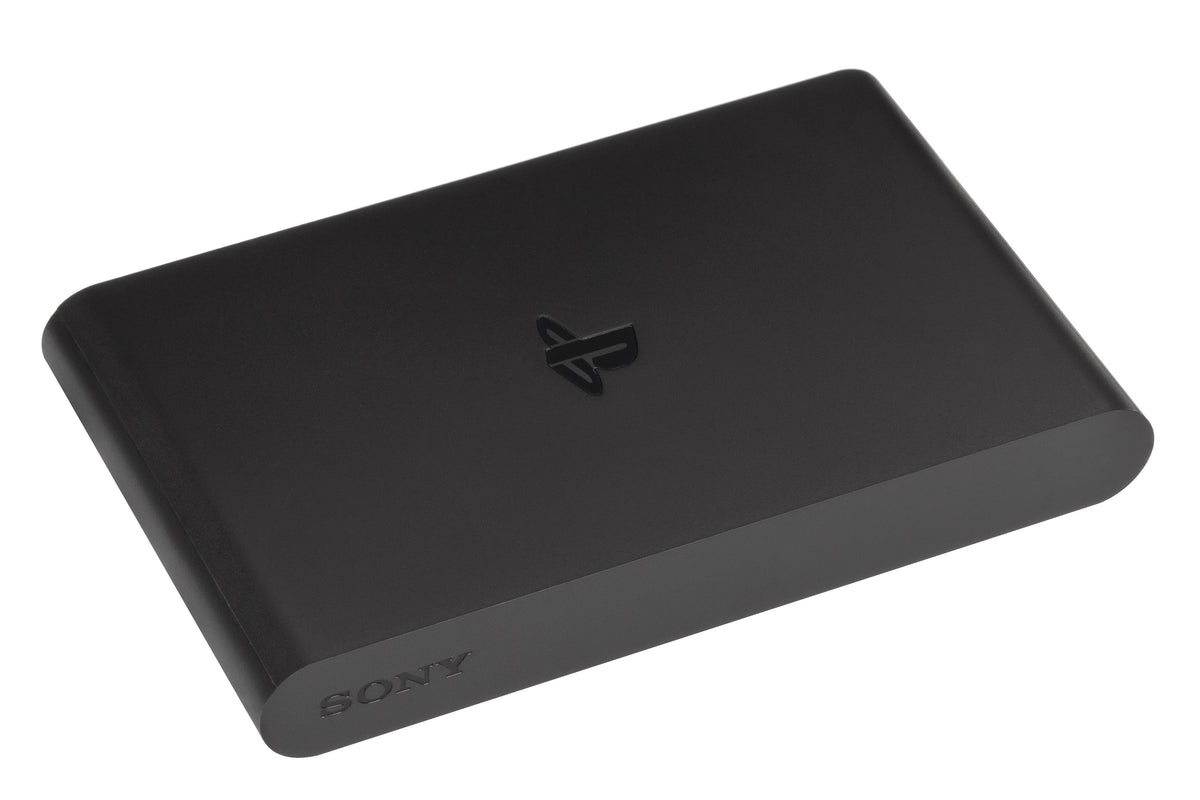
Featured photograph: front-right view of a PlayStation TV VTE-1001 by Evan-Amos, public domain. Hardware reference, not an image of a running game.
Pair the controller before diagnosing the game
Sony's controller instructions support both DualShock 3 and DualShock 4. With PS TV turned on, connect the controller by USB and press its PS button to register it. Register additional controllers separately.
For Vita-card play, Sony says the controller should be assigned to 1, shown in blue. Adjust that assignment in the quick menu opened by holding PS. That detail comes from the game-card instructions; being paired and having the intended assignment are separate checks.
Our advice: establish ordinary menu control first. Keep the USB cable handy and identify the controller you are testing before adding another pad. There is little value in investigating a game's touch prompt while still wondering which controller the system is listening to.

Know which touch surface the pointer represents
In Sony's touch-pointer guide, the setup starts by holding PS and enabling Use Touch Pointer in Games. It works in supported games, not on the home or LiveArea screens.
| Requested surface | Display its pointer |
|---|---|
| Vita screen | Press L3, or touch a DualShock 4 touch pad |
| Vita rear touch pad | Press R3 |
| Both surfaces | Press L3 and R3 together |
Move the pointer with the left stick or touch pad, then select with L2. Sony also lists Cross on DualShock 3 or pressing the touch pad button on DualShock 4 as selection alternatives.
Read the game's prompt before choosing the surface. Our practical recommendation is to say the request plainly: front screen, rear pad or both. That small pause is more useful than repeatedly confirming an input on the wrong side of an imaginary handheld.
A second pointer has its own stick and trigger
Moving the right stick while a pointer is visible brings up a second, red pointer. Control it with the right stick and select with R2, as Sony documents.
For an unfamiliar interaction, identify each pointer before attempting the full action. If the game provides a safe place to experiment, try positioning one, then the other. The purpose is to understand the controls without attaching every experiment to a costly mistake in play.
If you are buying secondhand, ask the seller to show the requested interaction inside the game. Seeing a controller navigate menus answers a different question from seeing the touch controls perform the action you need.
DualShock 4 changes a few expectations
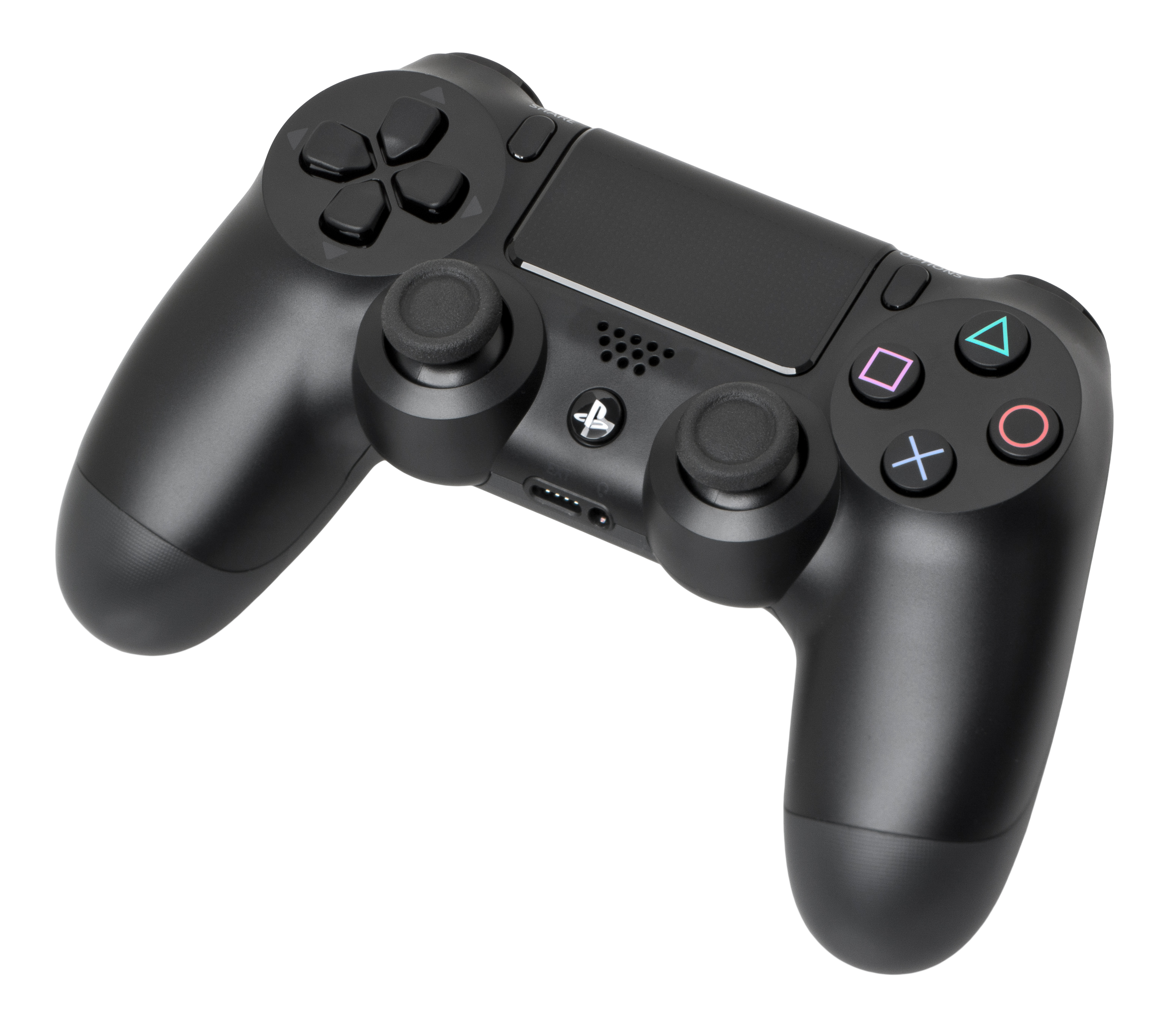
Sony's controller guide maps instructions for Select to Share and Start to Options. It also distinguishes touching the pad from pressing its button. Those are worth checking when a game refers to controls printed on a different controller.
The same guide says the DualShock 4's speaker and stereo headset jack do not function with PS TV. A familiar socket does not promise the same behavior on every console. If that feature matters to a proposed setup, settle it before buying a controller specifically for this use.
Keep game compatibility on the shopping list
Sony warns that some Vita software is incompatible with PS TV. Enabling a pointer is therefore not a universal compatibility fix. Check the exact title and edition separately, and ask for a demonstration with that game if compatibility is the reason you are buying a used unit.
Keep your notes specific: controller model, assignment, game, requested touch surface and observed response. That gives a seller something concrete to demonstrate and gives you a setup you can repeat later.
Build your physical PlayStation collection with Zypher
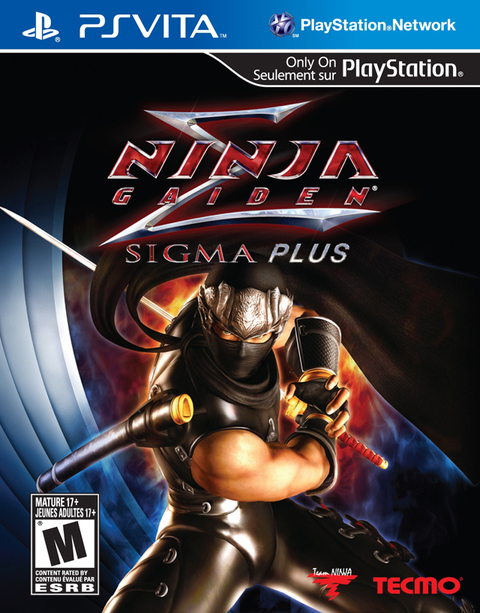
Buy your next physical game from Zypher Trading Video Games. For a Vita handheld collection, see our Ninja Gaiden Sigma Plus listing. This is a Vita product link, not a certification of PS TV compatibility. Check the exact platform, selected condition and included contents before ordering.
Shop Zypher's games, or sell your old games to Zypher. For PSP software already running on a handheld Vita, our Vita PSP-settings guide covers that different set of options.
Sony instructions, image permissions and native product listing checked November 5, 2026. Setup-testing suggestions are Zypher editorial advice, not claimed firsthand testing.